BeeTV Not Working? 12 Proven Fixes That Actually Help (2026)
BeeTV was one of the most-used free streaming apps on Firestick and Android, so when it stops working, it usually stops working for a lot of people at the same time. The good news is that most BeeTV problems are boring, fixable issues: a clogged cache, a tired Firestick, a wrong system clock, or a stream source that has quietly died. The less good news is that BeeTV itself was discontinued in 2026 and rebranded as CinePlus, so some failures now have a permanent cause.
This guide walks through 12 fixes in the order you should actually try them, from the 30-second ones to the nuclear option. If you reach the end and BeeTV still refuses to cooperate, we will tell you honestly why, and what to use instead.
Fix 1: Force Close and Restart the App
It sounds obvious, but a simple restart clears the most common BeeTV glitches: frozen menus, blank categories, and searches that never return results. On Firestick, go to Settings > Applications > Manage Installed Applications > BeeTV > Force Stop, then relaunch the app. On Android phones and tablets, do the same from Settings > Apps > BeeTV. Give the app a full minute after relaunching; source lists load in the background and impatient tapping makes it look more broken than it is.
Fix 2: Restart the Device Itself
Firesticks and Android TV boxes are designed to sleep, not switch off, and after a few weeks of sleeping they run low on free memory. A full restart fixes sluggish menus and playback that stutters for no clear reason. On Firestick, go to Settings > My Fire TV > Restart, or simply unplug the power for 30 seconds.
Fix 3: Clear the Cache (Not the Data)
BeeTV stores posters, source lists, and temporary files in its cache, and that cache grows stale. Clearing it forces the app to fetch fresh data. Use Settings > Applications > Manage Installed Applications > BeeTV > Clear Cache. Do not choose Clear Data unless you are prepared to lose your favourites, history, and settings, because Clear Data wipes all of them. If stale cache was your problem, categories and links repopulate within a minute or two. Persistent empty results after this step usually point to the issue covered in our guide to BeeTV “No Data” and no-links errors.
Fix 4: Check Your Internet Connection Properly
BeeTV needs a stable connection more than a fast one, but it does need both to a degree. Run a speed test on the same device. Standard definition needs roughly 5 Mbps, HD needs 10 Mbps or more, and 4K sources want 25 Mbps and will punish anything less. If the test looks fine but streams still fail, restart your router or switch from a crowded 2.4 GHz network to 5 GHz. For streams that start fine and then stall, our BeeTV buffering fixes go deeper.
Fix 5: Update BeeTV to v4.8.0
If you are running an older build, you are fighting bugs that were fixed later. The final genuine BeeTV release is v4.8.0, a small 18 MB app, and it is the version every fix in this guide assumes. Check your current version in the app’s settings or your device’s app info screen. Our step-by-step walkthrough on how to update BeeTV without losing your settings covers installing the newer build over the old one safely.
Fix 6: Reinstall BeeTV Cleanly
A damaged install causes crashes that no amount of cache clearing will fix. Uninstall BeeTV completely, restart the device (this step matters — it flushes leftover files), then install v4.8.0 fresh from a source you trust. Reinstalling is also the moment to think about where your copy came from. Modified and repackaged builds are a common cause of weird behaviour, which is why we explain the risks in our look at the BeeTV MOD APK.
Fix 7: Check Whether Amazon Has Disabled It Again
This is the fix nobody wants to hear. Through 2025 and into 2026, Amazon repeatedly disabled BeeTV on Fire TV devices at the system level. When that happens, the app may vanish from your home screen, refuse to open, or open with every source stripped out. No setting on your Firestick reverses a system-level block for long. This pattern is exactly why the original developers moved on and relaunched the app as CinePlus, which installs the same way and feels immediately familiar.
Fix 8: Accept When It Is a Server-Side Outage
BeeTV never hosted anything itself. It searched third-party sources and presented what it found. When those sources go offline, get blocked, or change how they work, BeeTV shows empty categories and dead links even though your device and connection are perfect. The test is simple: if menus load but nothing plays, and a second device on a different network shows the same thing, the problem is not yours to fix. Wait a day, or move to an app that is still maintained.
Fix 9: Rule Out VPN and ISP Blocking
Some providers block the domains streaming sources use, and some VPN exit servers are blocked by the sources themselves. Test both directions: if you normally use a VPN, try BeeTV with it off; if you never use one, the block may be at provider level. Change one thing at a time so you know what made the difference.
Fix 10: Correct the Date and Time on Firestick
This one surprises people. Firesticks occasionally drift or lose their time setting after a power cut, and many streaming sources refuse connections from a device whose clock is wrong because their security certificates appear invalid. Check Settings > Preferences > Time Zone and make sure date and time are set automatically. A wrong clock causes failures that look exactly like dead sources.
Fix 11: Free Up Storage Space
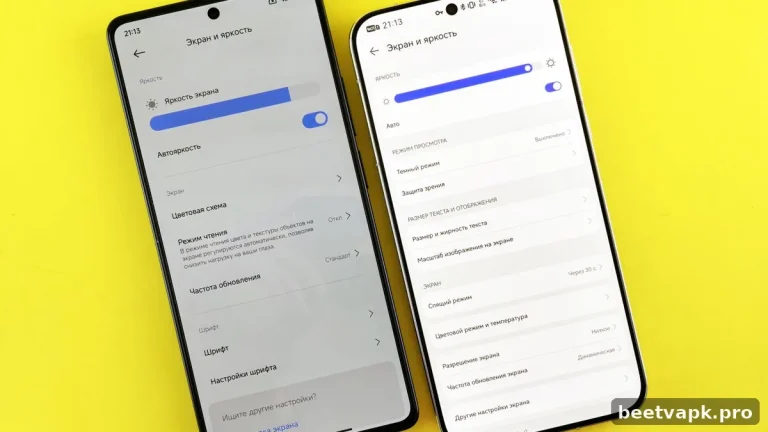
A Firestick with a few hundred megabytes free will misbehave in ways that blame the app unfairly: failed updates, corrupted caches, random crashes. Check Settings > My Fire TV > About > Storage. If you are nearly full, delete apps you no longer use and clear caches across the board, then try BeeTV again.
Fix 12: Change the External Player
If BeeTV finds links but playback fails, freezes, or shows a black screen, the built-in player is often the weak link. Install MX Player or VLC and set it as the default player in BeeTV’s settings. Many “BeeTV is broken” reports end here. Player choice also affects subtitles, as explained in our BeeTV subtitles fix guide.
The Honest Final Answer
If you have worked through all twelve fixes and BeeTV still does not work, the likely truth is that you are maintaining an app its developers no longer maintain. BeeTV ended at v4.8.0; its team now builds CinePlus, which carries the same idea forward with working sources and active updates. Our full CinePlus install guide gets you set up in minutes, and our roundup of the best BeeTV alternatives covers the other options worth your time.
Frequently Asked Questions
Why did BeeTV suddenly stop working?
The most common sudden causes are Amazon disabling the app on Fire TV, the stream sources going offline, or a stale cache. Work through the fixes above in order; if menus load but nothing plays on any device, it is almost certainly a source or shutdown issue rather than your setup.
Will clearing data fix BeeTV?
Clear Cache is the safe first step and fixes most glitches. Clear Data also resets the app completely, which can help, but it deletes your favourites, history, and settings, so treat it as a last resort before reinstalling.
Is BeeTV gone for good?
BeeTV as a brand ended with v4.8.0. The original developers relaunched the app as CinePlus in 2026, so the experience continues under a new name with active development and maintained sources.
Why does BeeTV work on my phone but not my Firestick?
That pattern usually means Amazon has disabled the app on Fire TV, or the Firestick is short on storage or memory. The Android build and the Fire TV experience are affected differently because Amazon controls the Fire TV system layer.